
PageTend · Google profile
Giving us access takes about two minutes.
You add one email address to your Google listing as a Manager. You stay the owner of it, nothing about your own Google account changes, and you can remove us again in two clicks. Below is exactly where to click.
First — which of these is you?
Most people are the first one. If you are not sure, search your business name on Google Maps and see what comes back. That answers it in about ten seconds.
- Most people
You can already edit your listing
Add us — step by stepYou search your business name while signed in and you see buttons like Edit profile, Promote or Add photo. That means the listing is yours and you manage it. This is the two-minute path.
- Fairly common
It is on the map, but nobody has claimed it
How to claim itGoogle created a listing for you from what it found elsewhere. You have never logged into it, and it shows Claim this business or Own this business?. Claim it first, then come back here.
- More common than you would think
Somebody else has it
How to ask for it backAn old marketing company, a web designer you stopped using, a former employee. Google will offer Request access. There is a seven-day clock on it, so start this one today even if nothing else happens this week.
- Rare
There is nothing there at all
How to create oneNothing on the map under any spelling of your name. You will create one. It is free, and for local trade work it is the single highest-value hour you will spend this month.
Adding us, click by click
This takes about two minutes and you only do it once. Do it on a computer if you have one to hand — it works in the Google app too, but the menus sit in different places there and it is quicker to get right on a big screen.
The pictures below are our own listing, so yours will show your business name and your own photos. Everything else looks the same.
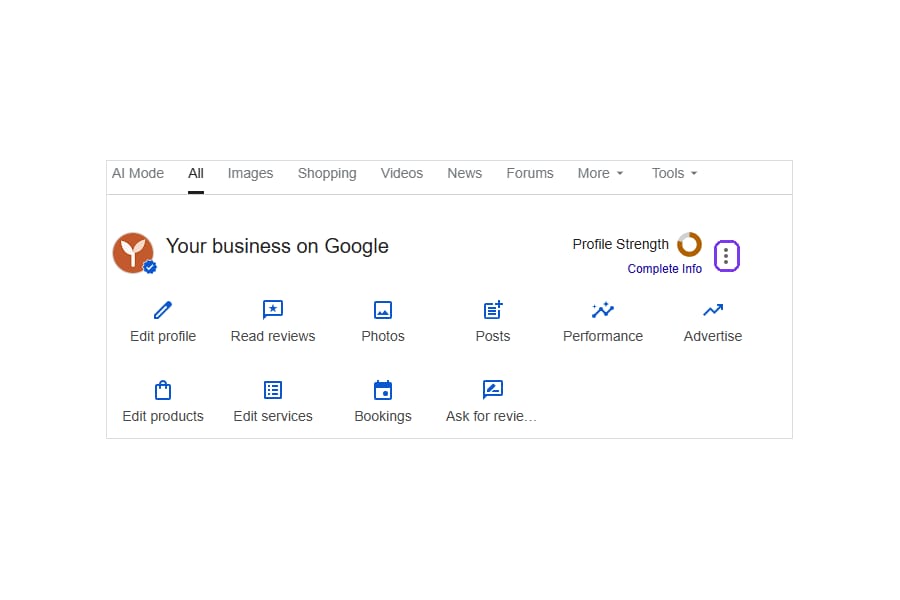
Step 1 of 4
Find your listing
Sign in to Google with the account you use for the business, then search for your business name. Your own listing comes up in a panel with a row of buttons across the top — Edit profile, Read reviews, Add photo and so on.
If you do not see that row, you are either signed in with a different account or the listing is not yours yet — the four questions above cover what to do instead.
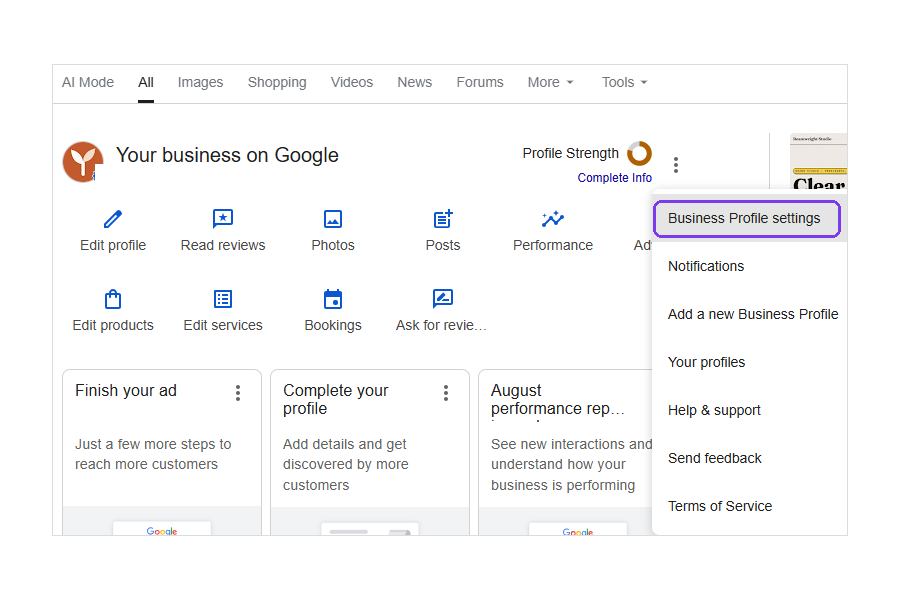
Step 2 of 4
Open Business Profile settings
Click the three dots at the top right of that panel, circled above. A menu opens; choose Business Profile settings, the first item on the list.
Some accounts show Settings straight away without the three dots. Either one is the right place.
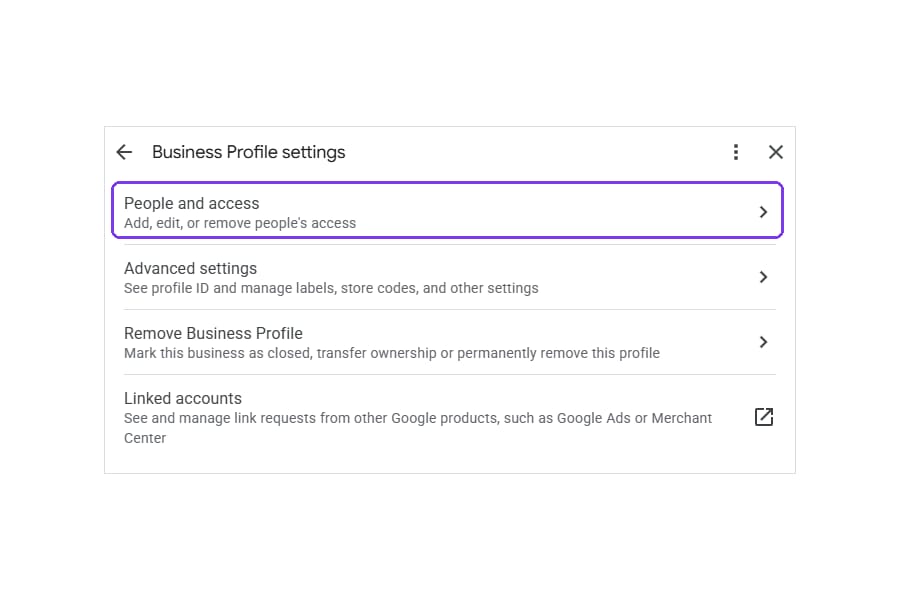
Step 3 of 4
Go to People and access
Click People and access, the first row in the settings box. You will see yourself listed there as Primary owner — that does not change, and nothing you do next affects it.
Click the blue Add button.
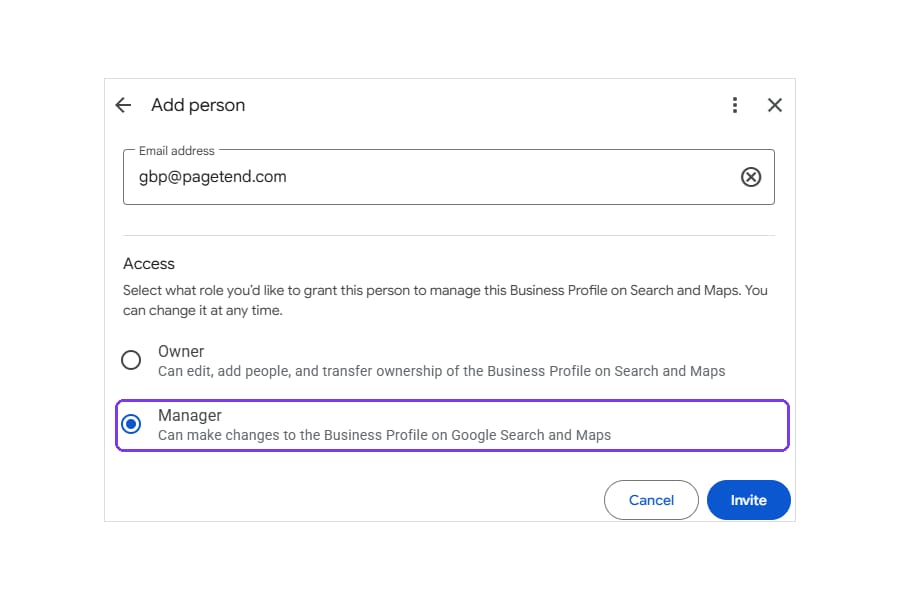
Step 4 of 4
Add gbp@pagetend.com as a Manager
Type gbp@pagetend.com in the email box, choose Manager from the two options — not Owner — and click Invite.
That is the last thing you need to do.
What happens next
Google emails the invitation to us and we accept it, usually within a few business hours. PageTend then appears in that same People and access list as a Manager, and nothing else about your listing changes.
If a screen does not look like the pictures here, Google has moved something again — reply to our email and we will walk through it with you on a screen share.
The other three situations
If your listing is not in your hands yet
Each of these ends in the same place — the four steps above. They just take a little longer to get there. If any of it stalls, say so and we will help; none of it is on a clock you have to beat alone.
01Claiming a listing nobody has claimed
Google builds listings on its own from phone books, other websites and what customers submit. So a listing with your name on it may have existed for years without you touching it — and whatever it says right now is what people are being told about you.
- Search your business on Google Maps and open the listing.
- Look for Claim this business or Own this business? and click it.
- Sign in with the Google account you want to own it long-term. Use one you will still have in five years — not a former employee's, and not an address at an internet provider you might leave.
- Confirm the details Google shows you, correcting anything wrong.
- Choose a verification method and complete it. See How Google checks you are real below.
Once you can edit the listing, come back and follow the four steps at the top.
02Asking for a listing somebody else controls
This is normal and it is recoverable. It usually means a marketing company or a web designer claimed it while working for you and never handed it over.
- Search your business on Google and click Claim this business. Google will tell you it is already claimed and offer Request access.
- Fill in the form. Google shows you a partly hidden version of the current owner's email — often enough to recognize who it is.
- Google emails them. They have seven days to respond.
- If they approve it, you get access immediately. If they decline, you can appeal and Google looks at the evidence. If they ignore it, you can usually claim the listing yourself after the seven days.
Two things worth doing while the clock runs. First, if you recognize the company, email them directly as well — most hand it over without fuss once asked plainly, and that is far faster than the form. Second, tell us, because seven days of silence and then an appeal is the one part of this where it helps to have someone who has seen it before.
03Creating a listing from scratch
Create it on your own Google account, not ours. We are deliberately not willing to own your listing — the profile is one of the few assets in your business that a supplier should never be holding, and ours is not the name that should be on the deed.
- Go to google.com/business and sign in with the business's Google account.
- Enter the business name and pick the closest category. You can add more categories later, and you should.
- When it asks whether you serve customers at your address: for most trades the answer is no, I deliver to them. Choose the service-area option and list the towns you cover. Your home address stays hidden.
- Add the phone number and website. Use the site we built you.
- Verify. See below.
Then follow the four steps at the top and we will fill in the rest — hours, services, description, photos, and the categories most people never set.
04How Google checks you are real
Verification is the part people get stuck on, so it is worth knowing before you start. Google decides which method you get; you do not choose from a menu.
- Video. Increasingly the usual one for trades. You record one continuous video — no stopping — showing three things: that you are where you say you are, that you have the tools of the trade, and that you manage the business. In practice: your van with the signage on it, your equipment, and then something with the business name on it, like a license, an invoice, or a utility bill.
- Postcard. Google mails a code to the address. Five to fourteen days. Do not change anything on the listing while you wait — it restarts the process.
- Phone or email. Quicker, but only offered to some businesses.
What to have ready before you start the video, because re-recording is the annoying part: the vehicle, one or two tools, and one document showing the business name. Do it in daylight. If it fails, you can try again — a failed attempt is not a mark against you.
The fair questions
What this lets us do, and what it does not.
Does this give you my Google password?
No. You are never asked for it, and we would refuse it if you offered. The Manager role attaches to our own separate Google account. Your password, your Gmail, your photos, your other Google services — none of it is visible to us, and none of it is involved.
Can you lock me out of my own listing?
No, and the roles are designed so that it is not possible. You stay Primary owner, which is the one role nobody else can remove. We are a Manager, a rung below: we can edit the listing, post, and reply to reviews. We cannot remove you, transfer the listing, or delete it.
What happens if I cancel?
You open the same People and access list, click PageTend, and choose Remove. That is the entire cancellation. Nothing else about the listing changes, and every photo, description and review reply we wrote stays there and stays yours.
Why not just add info@pagetend.com — the address I already write to?
Because that address is printed on our website and takes mail from strangers, which makes it the likeliest one to be attacked. `gbp@pagetend.com` receives no mail, is published nowhere, and signs in to nothing else. It exists only to hold this role. An account with nothing to phish is a safer place for your listing to hang from.
Will you post things as me without asking?
We handle the things you have asked us to handle: hours, photos, services, and replies to reviews in your voice. Anything that makes a new claim about your business — a service you have not told us you offer, a price, a guarantee — we run past you first. Everything we did shows up in your monthly note.
I sent the invitation but nothing has happened.
Google sends it to us and we have to accept it before the role takes effect, so until then that list shows us as Invited rather than Manager. That is normal for a few hours. If it has been more than one business day, tell us — occasionally Google routes the invitation somewhere unexpected and it is quicker for us to chase it than for you to resend.
Do I have to do this to have a website with you?
No. The website and the Google profile are separate, and plenty of clients take one without the other. This page only exists because the profile work cannot start until the access does.
If any of that did not look right, stop and ask.
Google changes these screens without warning, and a step that does not match what is in front of you is our problem to sort out, not yours to puzzle over. Tell us what you see and we will take it from there.
There is no charge for help with this, and no obligation attached to asking.